
Overview
Zakeke, like any other digital device, works in RGB color mode, because digital screens cannot display true Pantone or CMYK colors. However, if you or your customers are accustomed to working with Pantone or CMYK color systems for print production, the Pantone/CMYK mode allows you to enable a user interface that displays colors using Pantone or CMYK values instead of RGB.
Colors are shown based on a color mapping, which approximates the print colors on screen, making it easier to work with the same color system used in your production workflow.
On the output side, you'll see the colors in Pantone or CMYK, just as defined in your mapping palette. You can also choose to have the colors embedded directly in the PDF. In the case of CMYK, if you are using an ICC profile, the colors can even be automatically converted during printing.
How to set up the Pantone/CMYK Mode
Go to Printing Methods in your back office.
Activate the Pantone/CMYK mode option.
-
Choose your preferred Color System:
Pantone
CMYK
Configure the color system settings according to your needs (see below).
Pantone
-
Zakeke provides a set of pre-configured Pantone-to-RGB Mapping Palettes that you can use immediately. You can also create your own custom palette if you need specific mappings.
Once created, your custom Pantone mapping palettes are saved in Settings > Pantone/CMYK Mapping Palettes, where you can manage and edit them anytime.
On screen, Zakeke shows the RGB equivalents of your Pantone colors based on the selected mapping.
-
On the ouput side:
Along with the print output files, Zakeke provides a summary, where all colors used in the design are listed in Pantone.
-
If the Embedded PDF Output option is enabled, the selected Pantone colors are also embedded as spot colors inside the print-ready PDF.
👉 Read carefully the Output section for more details on how colors are handled and embedded in exported files.
CMYK
You can choose one of the two alternative modes for CMYK:
-
CMYK-to-RGB Mapping Palette
Build your own CMYK-to-RGB Mapping Palette to define how each CMYK color is displayed on screen. Once created, your palette is saved in Settings > Pantone/CMYK Mapping Palettes, where you can manage and edit it anytime.
On screen, Zakeke shows the RGB equivalents of your CMYK colors based on the selected mapping.
-
On the ouput side:
Along with the print output files, Zakeke provides a summary, where all colors used in the design are listed in CMYK values.
-
If the Embedded PDF Output option is enabled, the selected CMYK colors are also embedded as spot colors inside the print-ready PDF, making them readable by Adobe Illustrator or other design tools, and printing machines.
👉 Read carefully the Output section for more details on how colors are handled and embedded in exported files.
-
ICC Profile
Upload your own ICC color profile instead of creating a Mapping Palette.
In this mode, the UI remains unchanged: you continue working in RGB with the standard color picker.
The ICC profile is embedded in the final print-ready PDF.
This means that Zakeke does not convert colors during design or preview — the colors remain in RGB on screen.
When the file is processed by the printing machine, the embedded ICC profile ensures that colors are automatically interpreted and converted from RGB to CMYK according to the mapping included in the ICC profile.
👉 Read carefully the Output section for more details on how colors are handled and embedded in exported files.
💡 Note
Once the Pantone/CMYK mode is activated and a Mapping Palette is selected, all other features within the same Printing Method that involve color management (such as text color settings or the option to limit the number of colors in the design) will automatically use that palette.
This ensures full color consistency across the entire printing workflow — the Pantone/CMYK tool becomes the reference for all color-related settings in the Printing Method.
Understanding color mapping
Zakeke works in RGB color mode, as digital screens cannot display true Pantone or CMYK colors. Color mapping is the process that allows Zakeke to translate between the RGB colors shown on screen and the Pantone or CMYK values used in print production.
When you activate the Pantone/CMYK mode, you define how this translation happens through a Mapping Palette — a table that links each Pantone or CMYK color to its closest visual equivalent in RGB.
How color mapping works in the UI
-
For design elements where the customer chooses a color (such as text or shapes), the available colors come directly from the selected Pantone or CMYK Mapping Palette.
Customers can browse the predefined color list or enter a specific Pantone or CMYK code manually if they already know it (and that code is in the palette.
-
For uploaded elements, such as images or logos, Zakeke automatically analyzes its colors to map them to the Pantone or CMYK palette you have selected.
Naturally, Zakeke limits the number of colors detected in the uploaded image before applying the color mapping. This is because an image may contain hundreds of different color values, especially in raster images (such as photographs), many of which are not even perceptible to the human eye. Creating a one-to-one mapping for hundreds of colors would not make sense — therefore, Zakeke automatically reduces the color set to a maximum of 10 colors and then converts those colors to the closest Pantone or CMYK values.
This behavior is particularly noticeable when you upload complex raster images, such as photos, where the result may look quite different from the original. On the other hand, when you upload simpler images, such as logos or vector-style artwork, the mapping works optimally, providing a precise and faithful result. It’s also worth noting that Pantone and CMYK modes are typically used in industries working with logos, graphic artwork, or limited-color designs, and not with photographic or highly complex images.
Customers can adjust the result manually by changing the mapped Pantone or CMYK colors, selecting a different color from the available palette than the one automatically suggested by Zakeke.
Remember
Although the color list is displayed in Pantone or CMYK, the on-screen colors are still technically shown in RGB. The colors your customers see on screen are always the closest RGB representation of the selected Pantone or CMYK color.
Output behaviour
Pantone/CMYK colors in the Order Summary
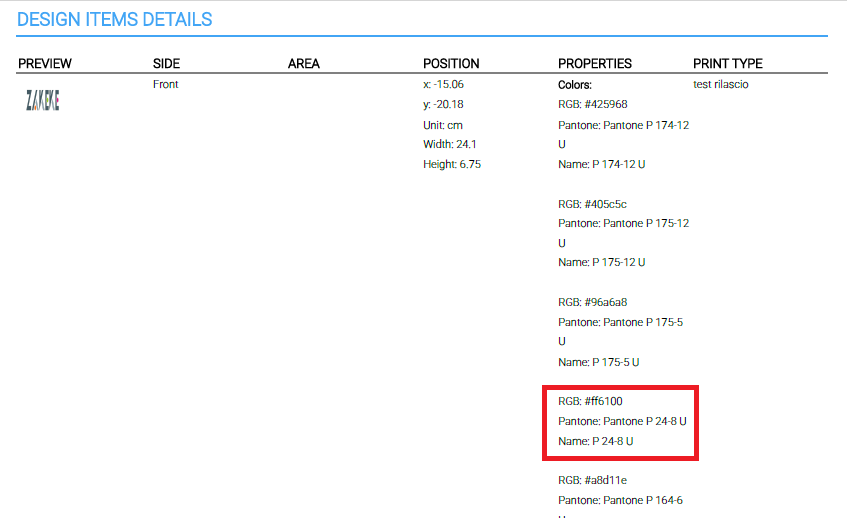
Zakeke provides a detailed Order Summary that lists all the Pantone or CMYK colors used in each element of the design. You can then manually apply those colors during printing. See image below.
Embedded PDF Output
If Embedded PDF Output is enabled, these colors are also embedded as spot colors in the final print-ready PDF. This allows professional design tools (Adobe Illustrator, etc.) and printing machines to automatically recognize the colors.
Caution
-
Embedded Pantone and CMYK values are applied only to vector elements.
Raster elements (e.g., uploaded images or rasterized effects) remain
in RGB even in embedded PDFs.
To ensure all elements in your design carry embedded Pantone/CMYK colors, you may consider enabling the AI Vectorizer. This converts raster elements into vectors before export, producing a final PDF where every element has embedded color information.
- Embedded colors are only included in print-ready files in PDF format. Other formats provided by Zakeke (SVG, PNG, DXF) do not support color embedding.
PDF Output with ICC Profile (for CMYK)
The PDF generated by Zakeke includes the ICC profile uploaded during the tool configuration. This means that the output PDF contains information about how colors should be interpreted by printing software or devices. RGB values in the PDF are converted to CMYK in real time according to the attached profile, ensuring that the printed colors are as close as possible to the intended design.
Caution
The automatic conversion of colors from RGB to CMYK can never be perfectly accurate because the two color models describe different physical phenomena: RGB is additive and represents light emitted by displays, while CMYK is subtractive and represents light reflected from paper. Many colors visible on screen cannot be reproduced in print and must be approximated.
The final result depends on the color profiles (ICC) used, which define how devices interpret numerical color values. Physical factors such as the type of paper, inks, and ambient lighting also affect the final appearance.
RGB-to-CMYK conversion is always a compromise, managed through color profiles and manual adjustments to achieve the closest possible visual match.