Configuring your own email address
Go to your Zakeke back-office > Settings > General Settings, then scroll to the “Customize the From email address for notifications” section.
You have two options:
- Gmail: it allows you to enable your Gmail account or any other email address that is configured in your Gmail account. (coming soon)
- SMTP: this is to configure any email address via an SMTP server. Details you need to configure it are provided by your service provider.
-
Gmail:
- From email address: your address email
- host: smtp.gmail.com
- port: 465
- Encryption: SSL
- Username: address email/ username
- Password: you will need to generate an app password for Zakeke (see below)
Generating an App Password in Gmail
Note: Before you can generate an app password in Gmail, you’ll need to turn on Google’s 2-Step Verification.
To create an app password in Gmail, log in to your Gmail or Google Workspace account.
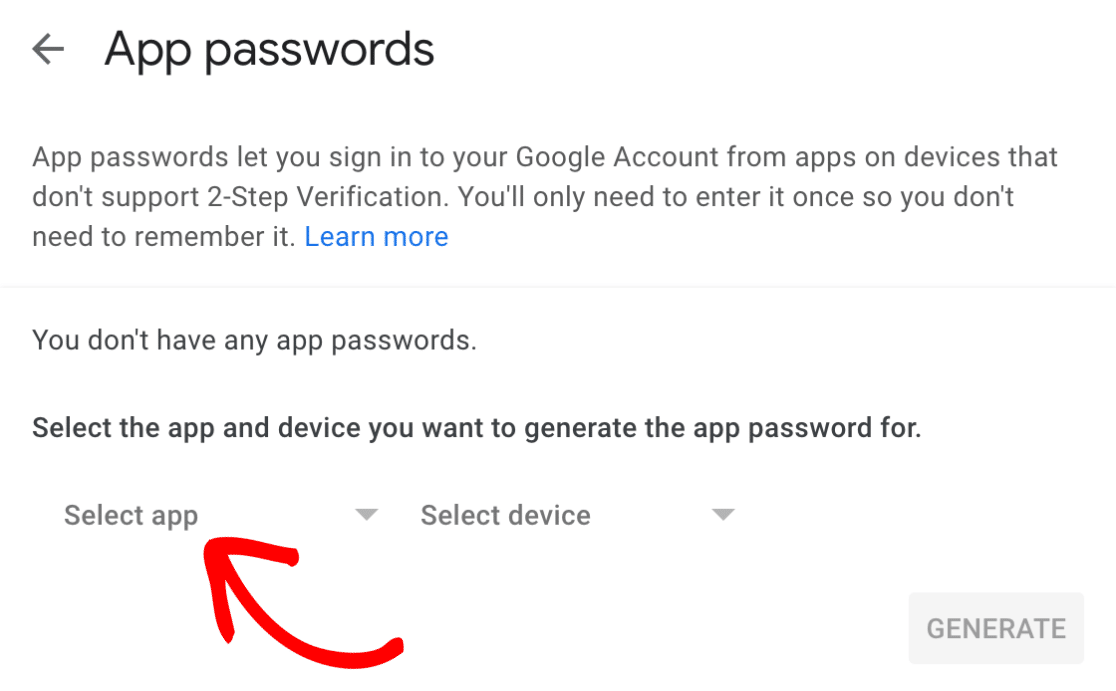
Then, go to App passwords in your security settings. On this page, click on the Select app dropdown.
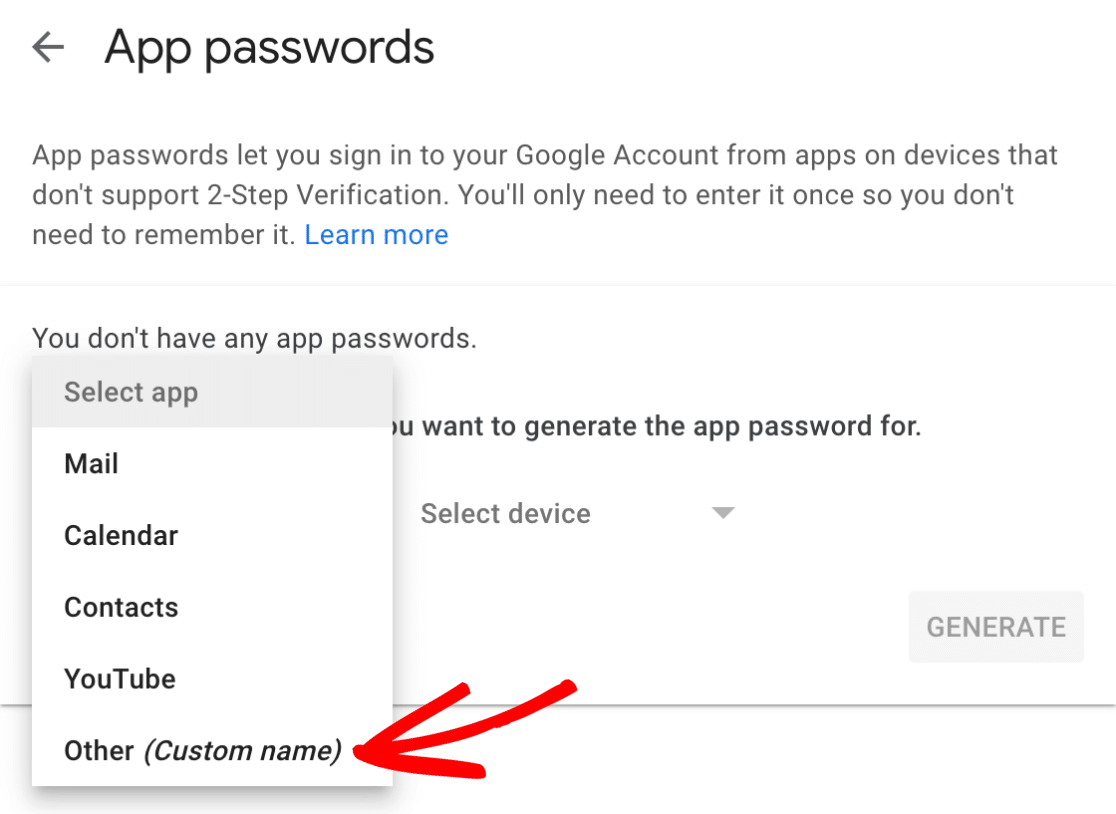
Next, select the Other (Custom name) option from the dropdown menu.
Then, enter Zakeke in the field provided and click the blue GENERATE button.
This will generate an app password that you can use for your SMTP setup.
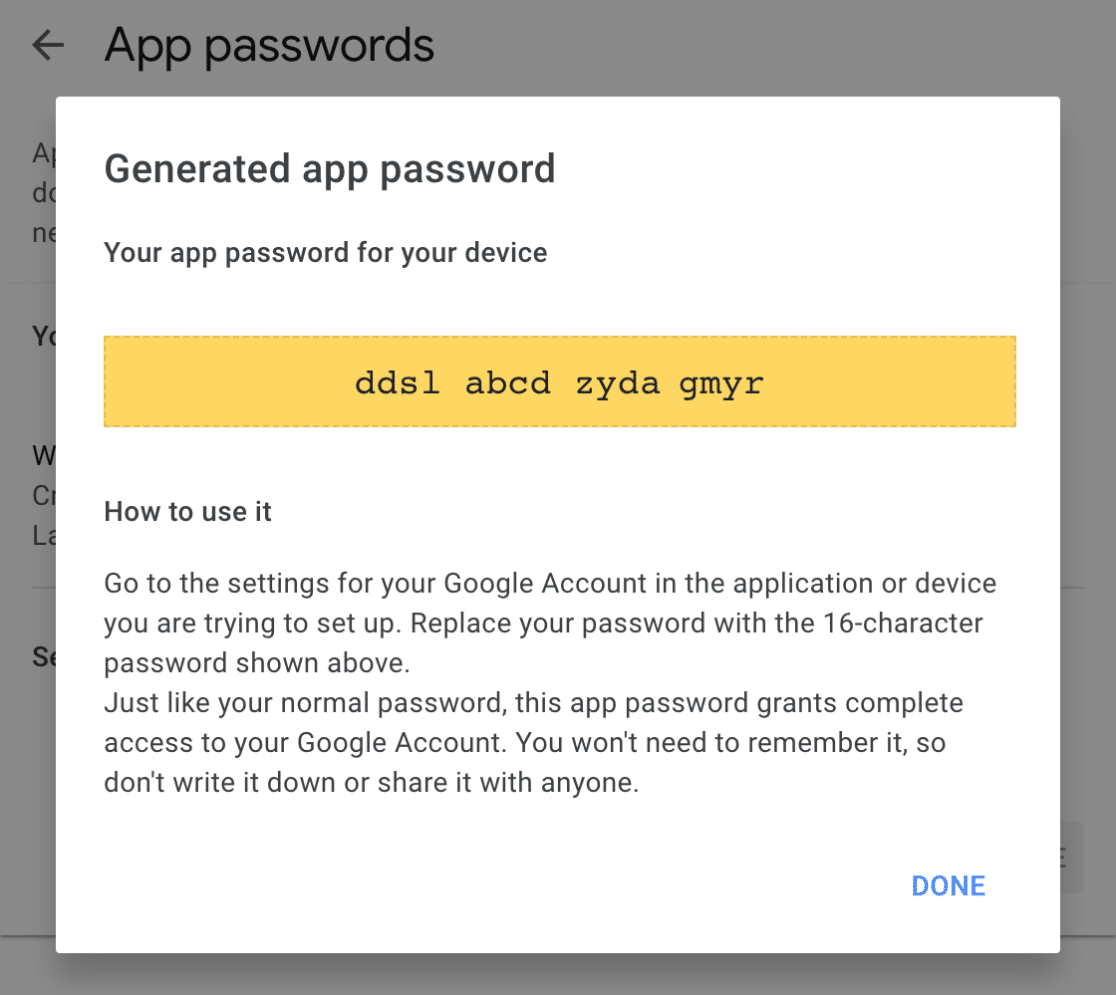
You’ll want to copy this password, then return to your Zakeke SMTP settings. From here, paste the password into the Password field and save your settings.
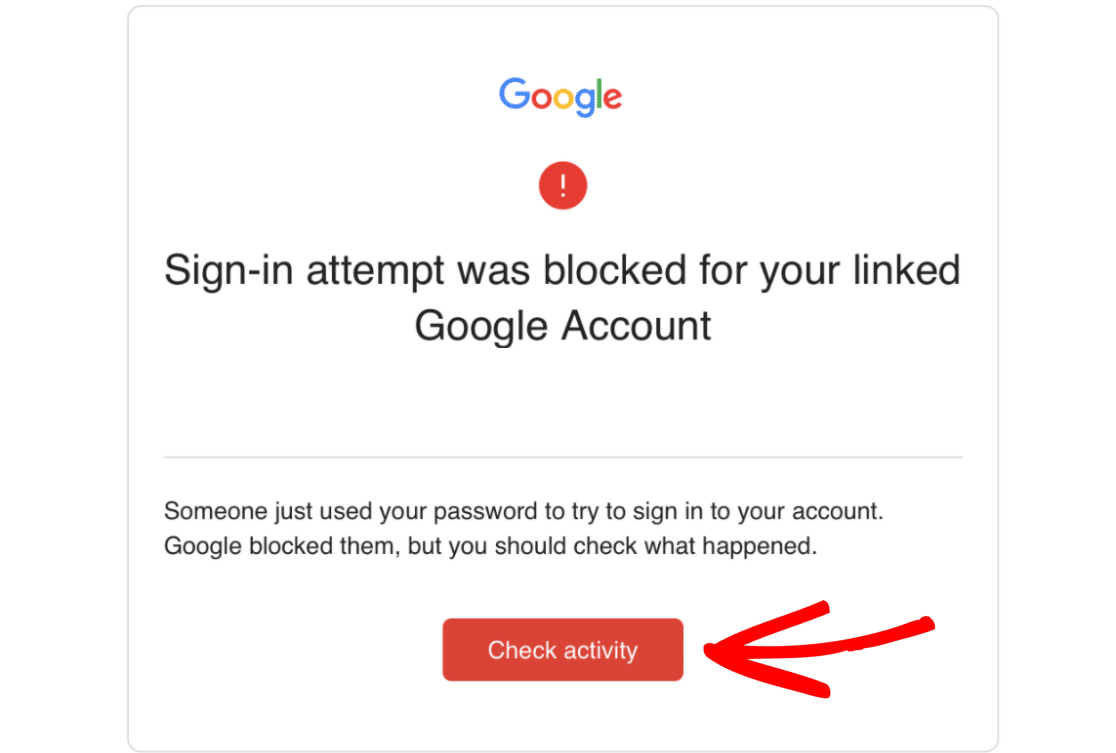
Note: Sometimes Gmail may automatically block the sign-in used by SMTP for security reasons, even when using an app password. When this happens, an email will be sent to your recovery email address with a sign-in attempt warning (see below).
To remove this block, you’ll need to click the Check Activity button in the email (or visit your account’s Notifications page) and follow the instructions provided to let Google know this was a legitimate login attempt.